
Template Library
Templates designed for the MightyShare plugin, from simple text on your background to more complex layouts for different niches.
Standard 1
With a featured image
Center your headline over a featured photo, with a border in your brand color.
standard-1Standard 2
With a featured image
Keep your headline to the left over a featured photo, with a border in your brand color.
standard-2Standard 3
With a featured image
Place your headline at the bottom of a featured photo, with a border in your brand color.
standard-3Standard 4
With a featured image
A left-aligned headline and a border in your brand color, built around your featured photo.
standard-4Standard 5
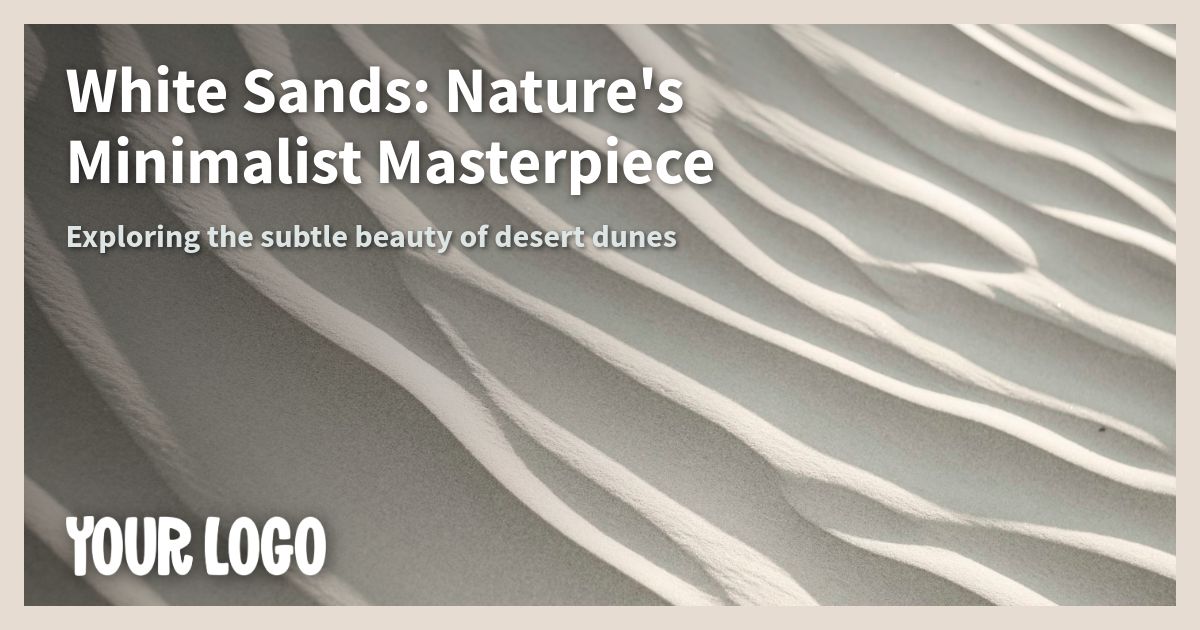
With a featured image
A left-aligned headline over your featured photo, framed by your brand color.
standard-5Standard 6
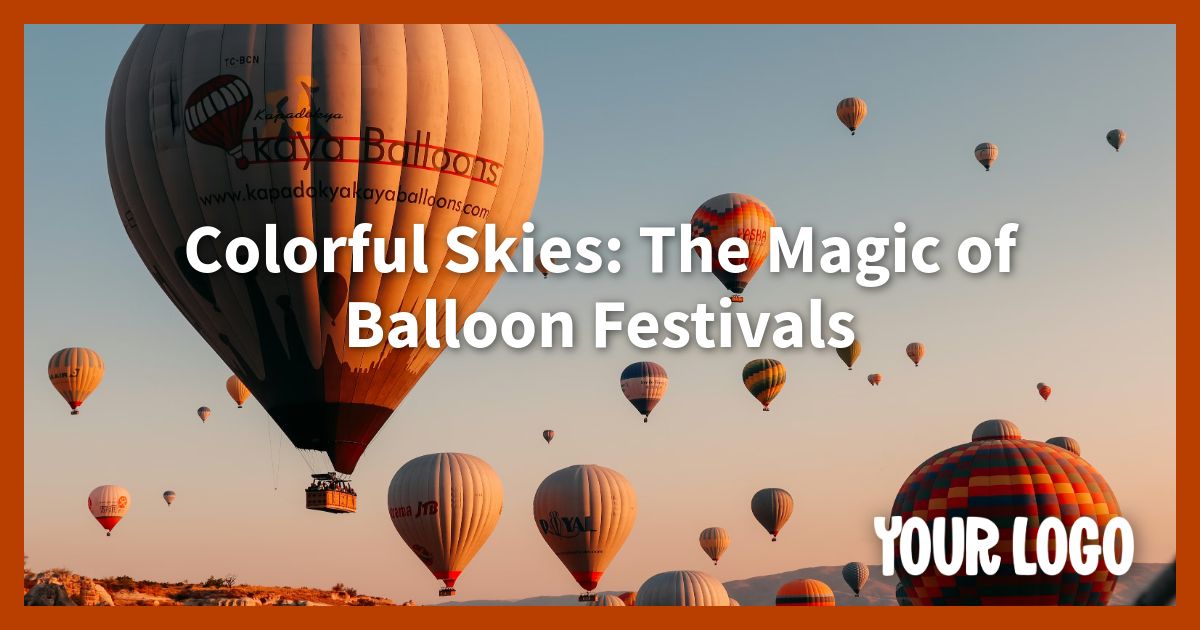
With a featured image
Put your logo on the right of a featured photo, with a border in your brand color.
standard-6Mighty 1
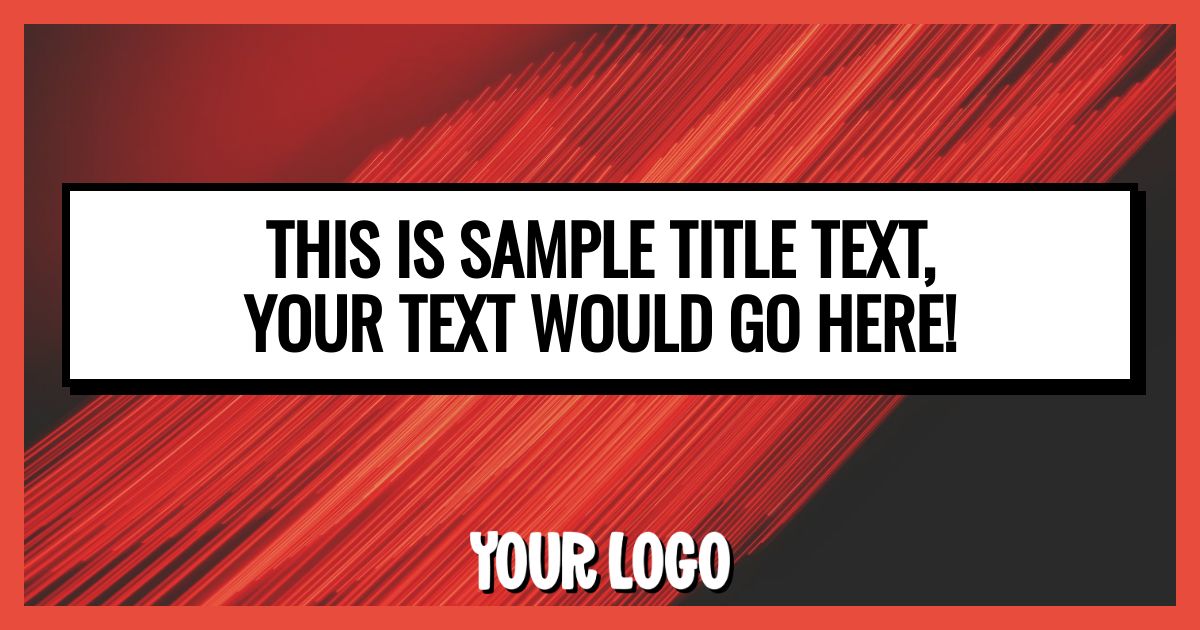
With a featured image
A headline on a distinct panel over your featured photo, with a border and a shadowed logo.
mighty-1Mighty 2
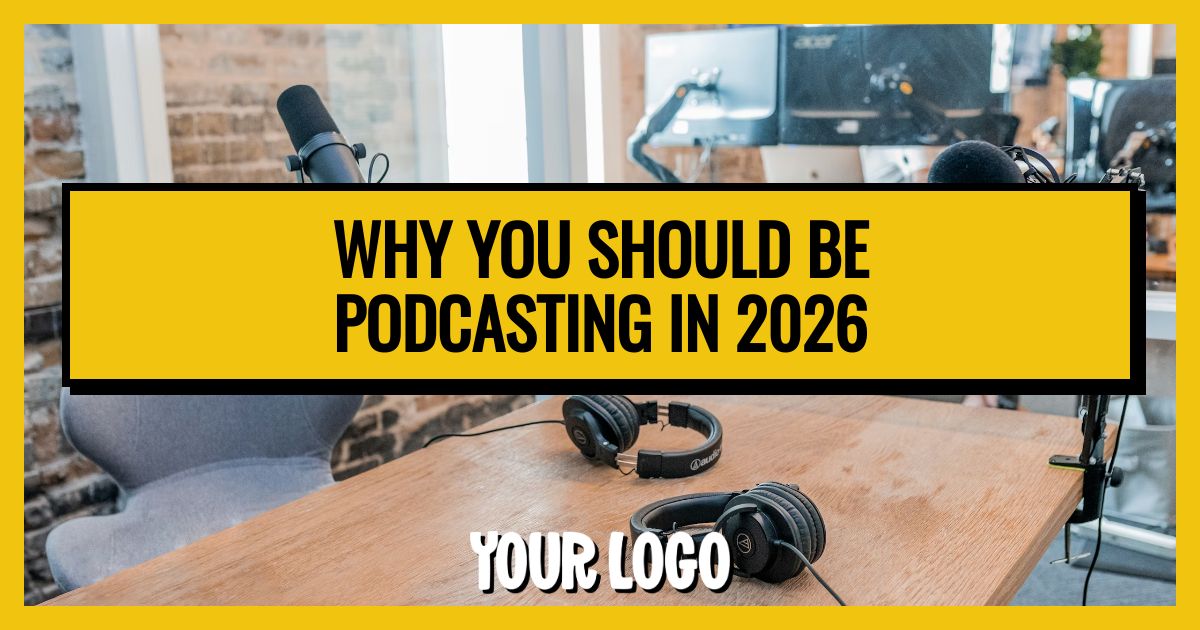
With a featured image
A colored headline panel over your featured photo, with a border and a shadowed logo.
mighty-2Mighty 3
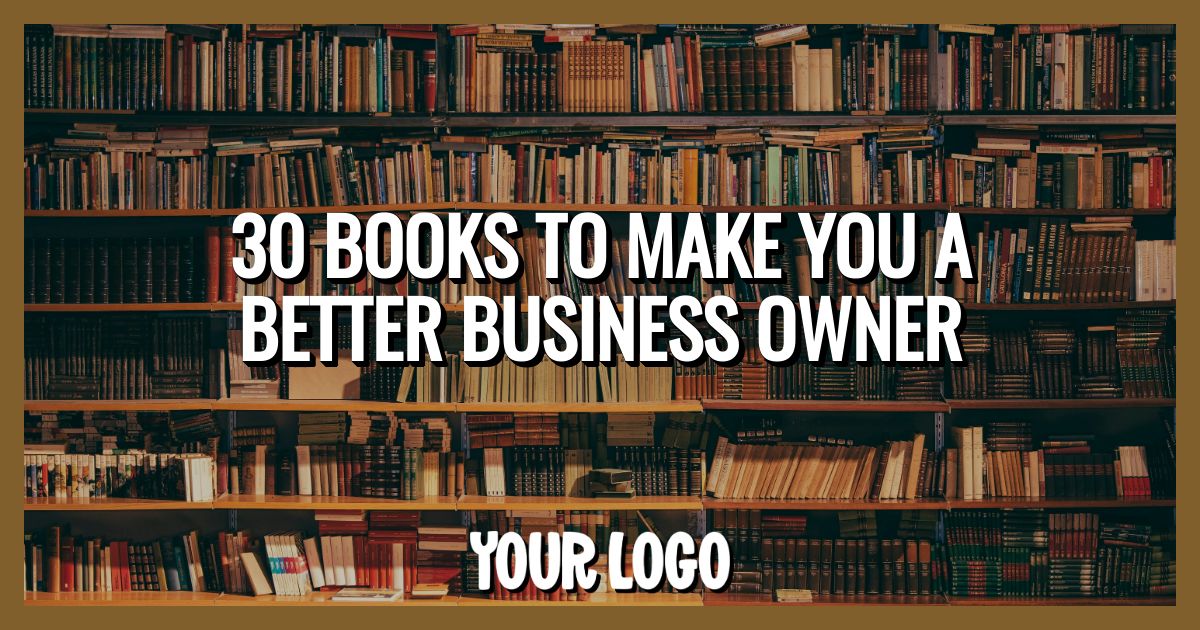
With a featured image
Give your headline and logo a strong shadow, framed by your brand color.
mighty-3Basic 1
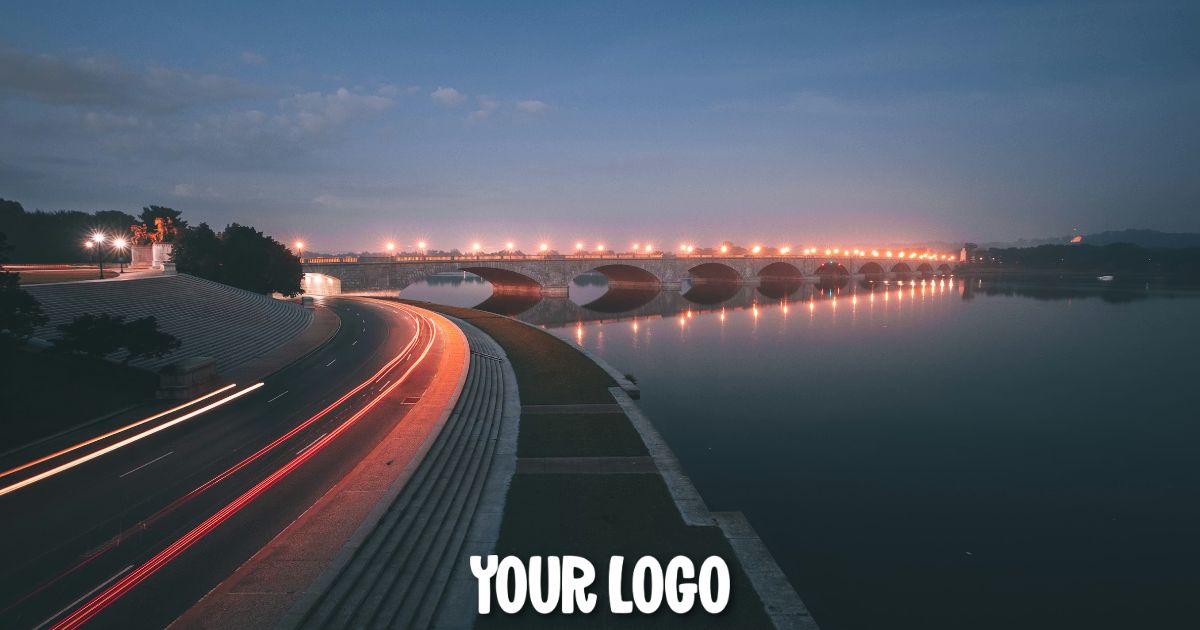
With a featured image
Overlay your logo on a full-frame photo. A simple choice when the image tells the story.
basic-1Basic 2
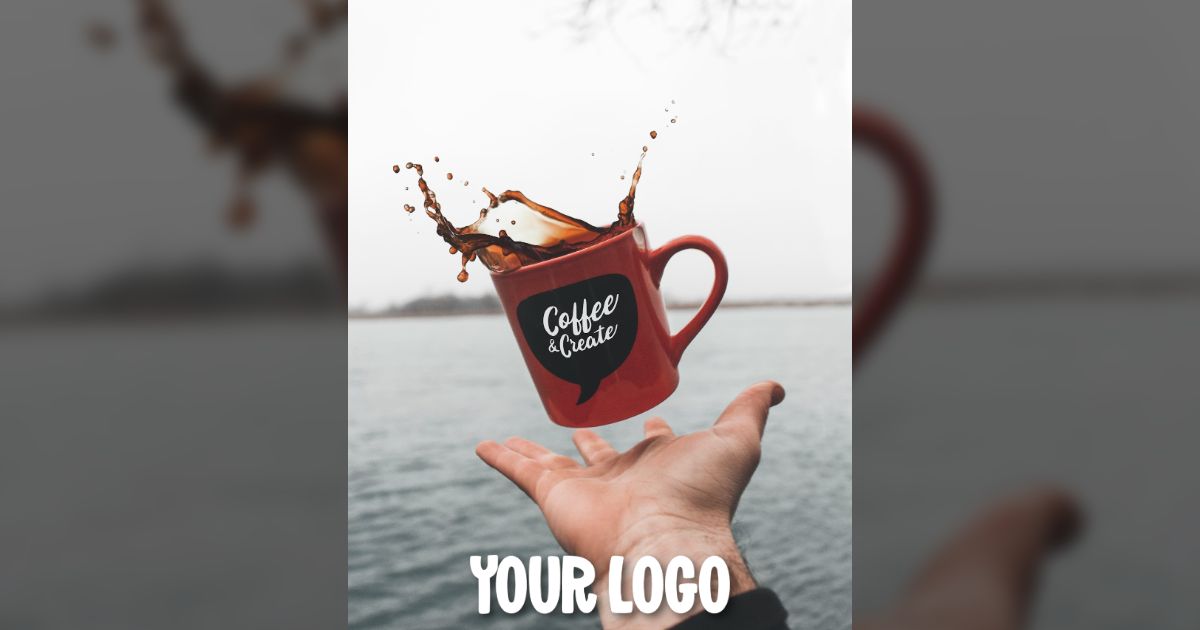
With a featured image
Show the whole image with a softly blurred backdrop. Useful for photos in different shapes and sizes.
basic-2Basic 3
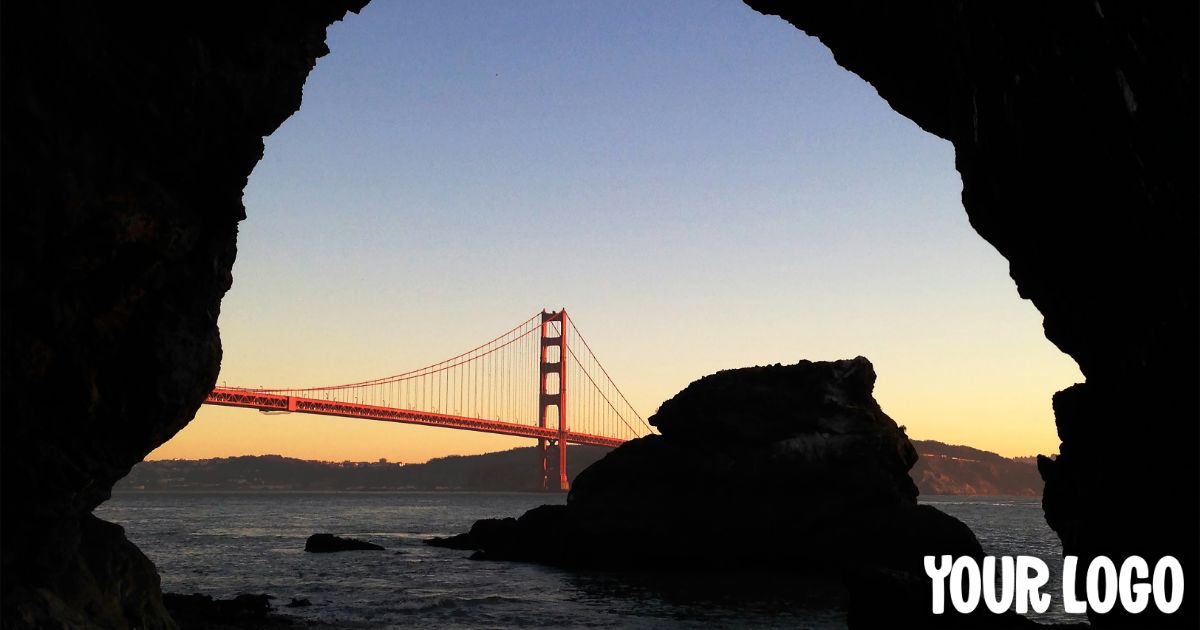
With a featured image
A full-frame featured photo with your logo aligned to the right.
basic-3Basic 4
With a featured image
Combine a headline, short description, and logo over a photo with a gradient for readability.
basic-4Basic 5
With a featured image
A full-frame photo with extra space around the right-aligned logo.
basic-5Basic 6
With a featured image
Keep your logo in the top-right corner over a full-frame photo.
basic-6Clean 1
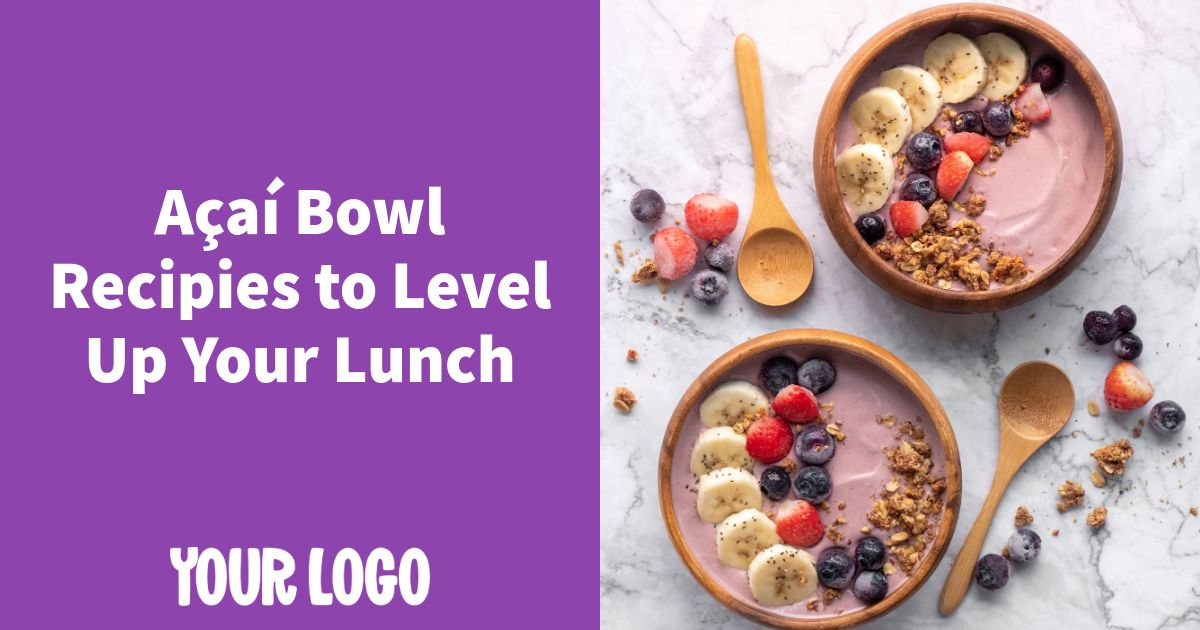
With a featured image
Give the headline its own colored panel, with your featured photo on the right.
clean-1Clean 2
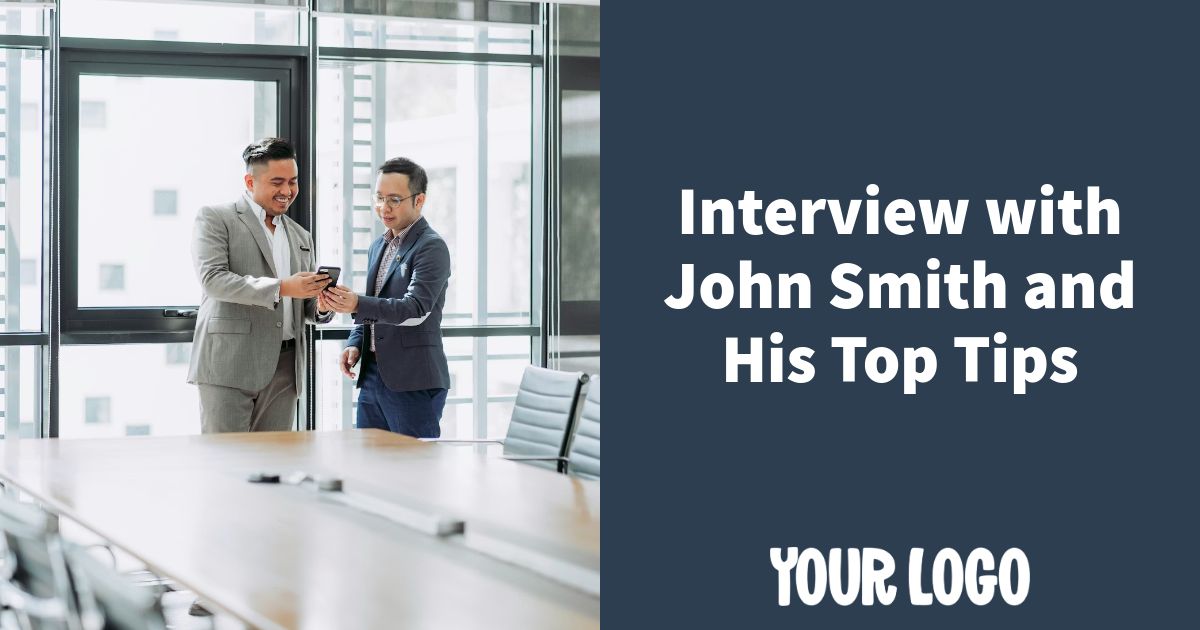
With a featured image
Put your featured photo on the left and your headline on its own colored panel.
clean-2Clean 3
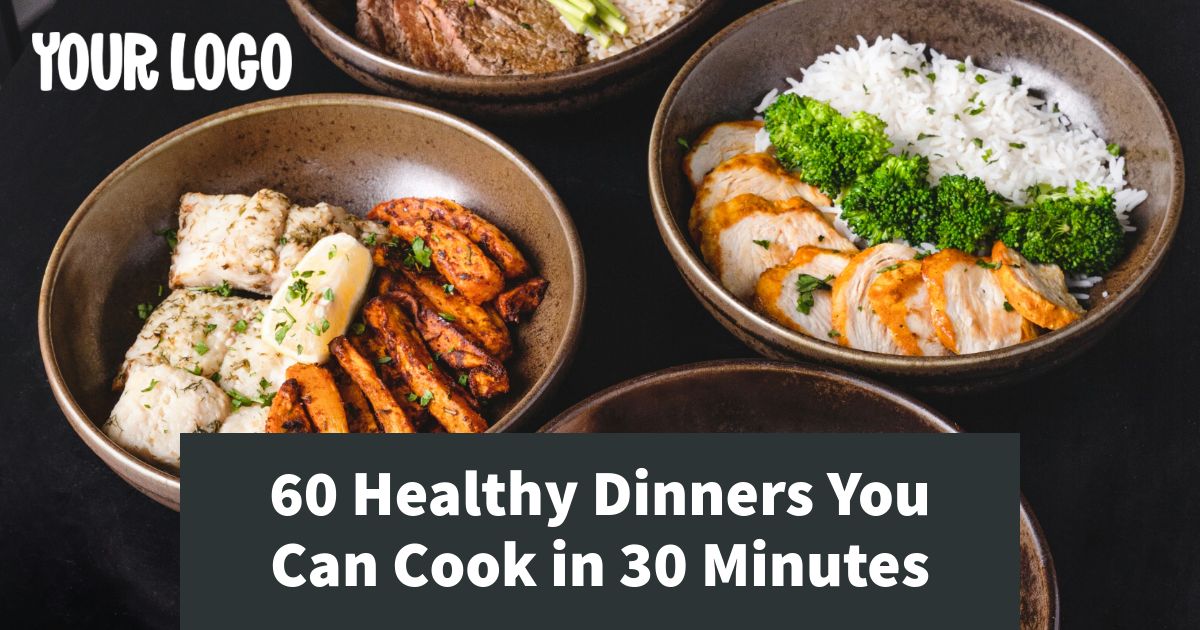
With a featured image
Give your headline a colored panel over a full-frame featured photo.
clean-3Bold 1
No photo needed
Make a large uppercase headline the focus, with your brand color as the background.
bold-1Bold 2
No photo needed
A large uppercase headline, optional logo, and a background in your brand color.
bold-2Bold 3
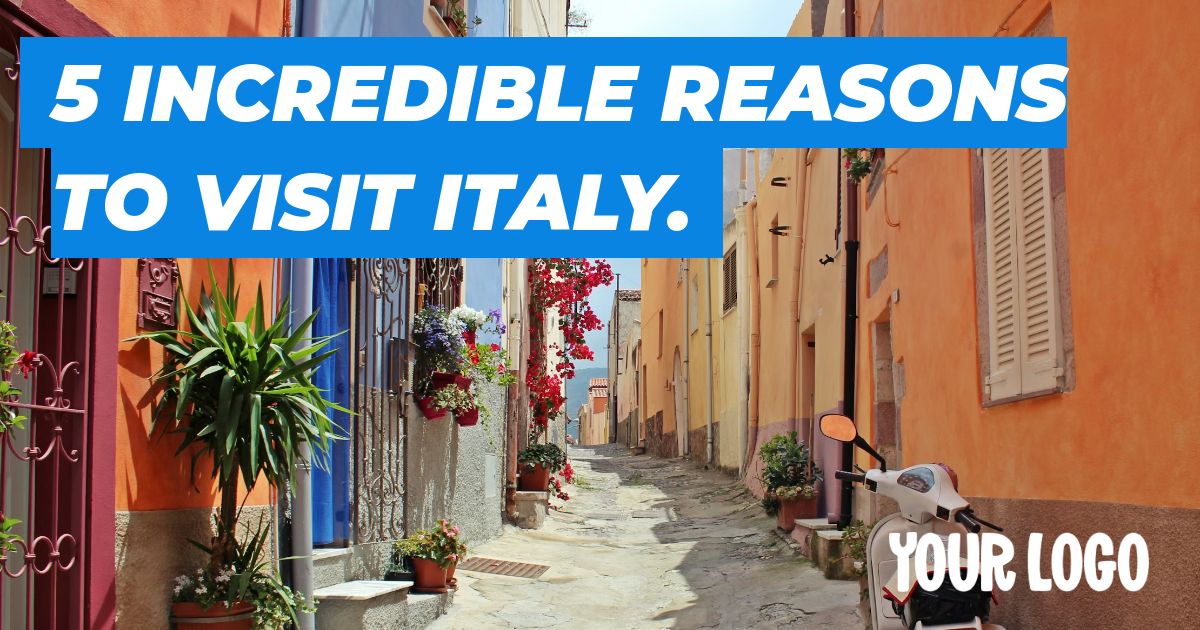
With a featured image
Pair a large uppercase headline with your featured photo and brand color.
bold-3Float 1
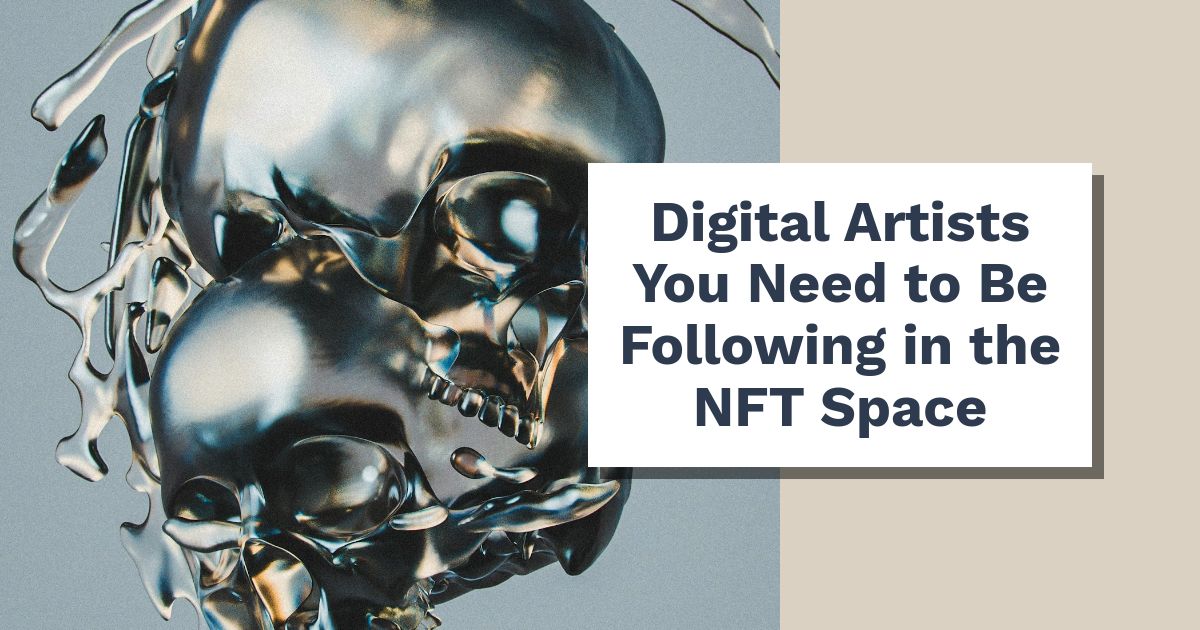
With a featured image
A floating headline panel, with your photo on the left and your brand color on the right.
float-1Float 2
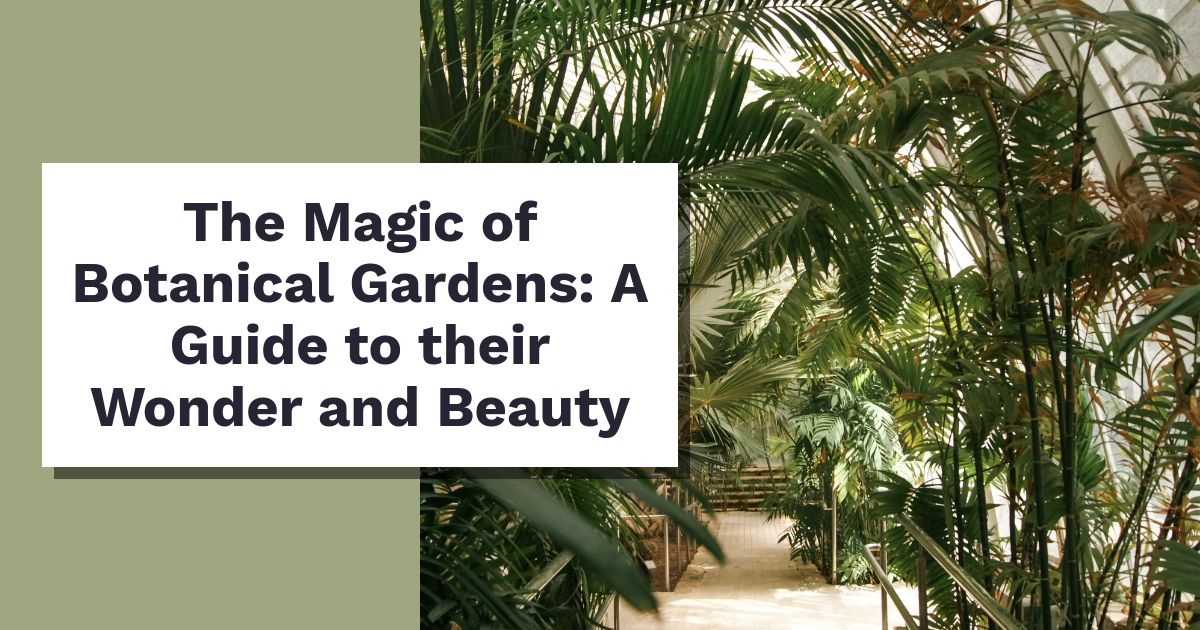
With a featured image
A floating headline panel, with your photo on the right and your brand color on the left.
float-2Float 3
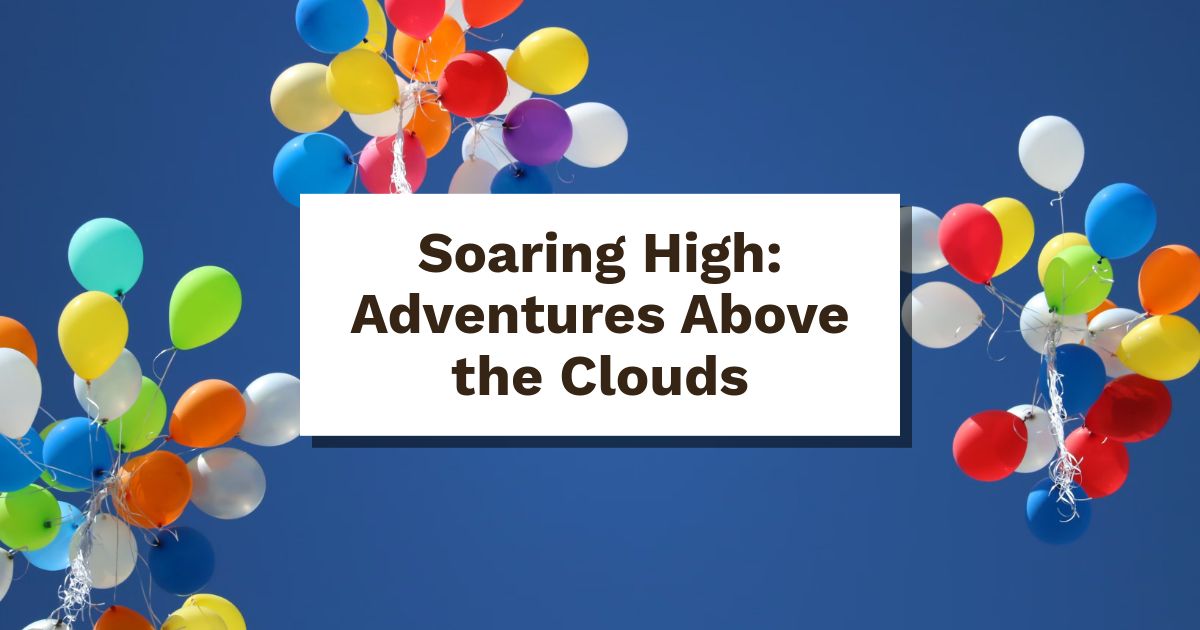
With a featured image
Center your headline in a floating panel over a full-frame photo.
float-3Business 1
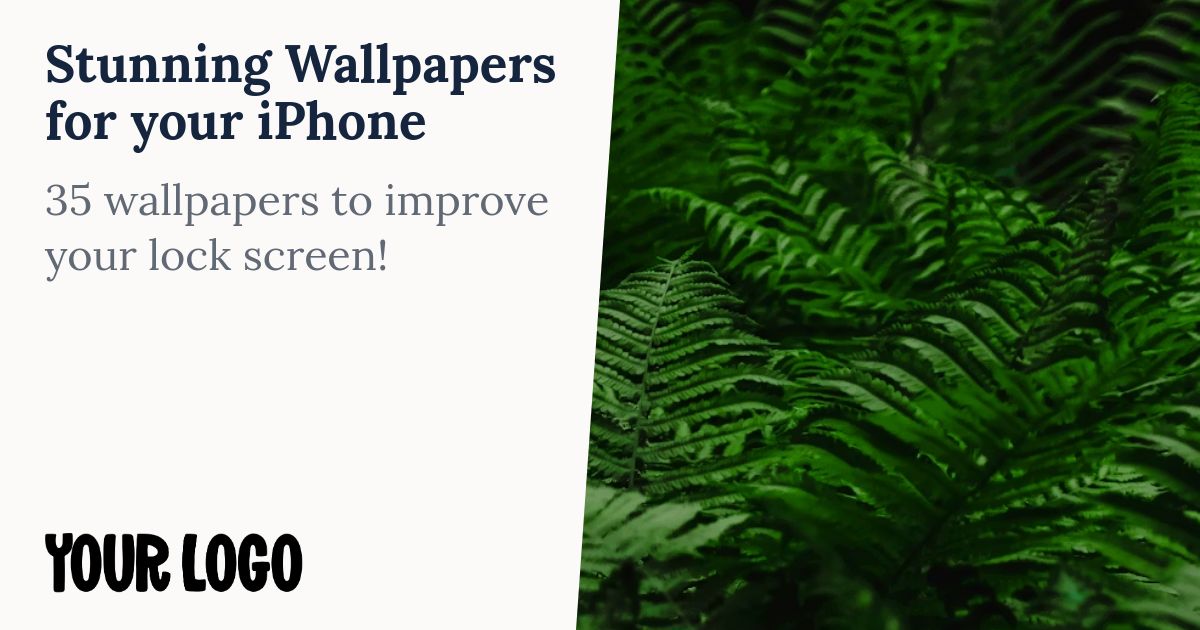
With a featured image
Dark text on a light panel beside a photo on the right. For company articles and updates.
business-1Business 2

With a featured image
A photo on the left beside dark text on a light panel. For company articles and updates.
business-2Travel 1
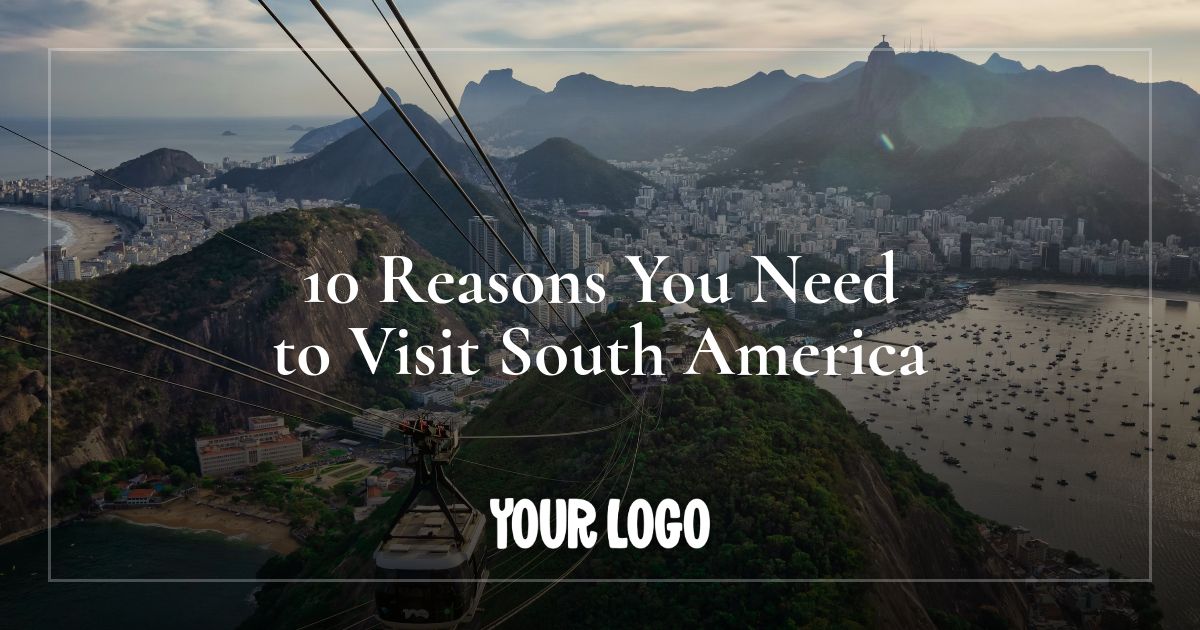
With a featured image
Frame your headline and logo with a simple border over a destination photo.
travel-18bit 1
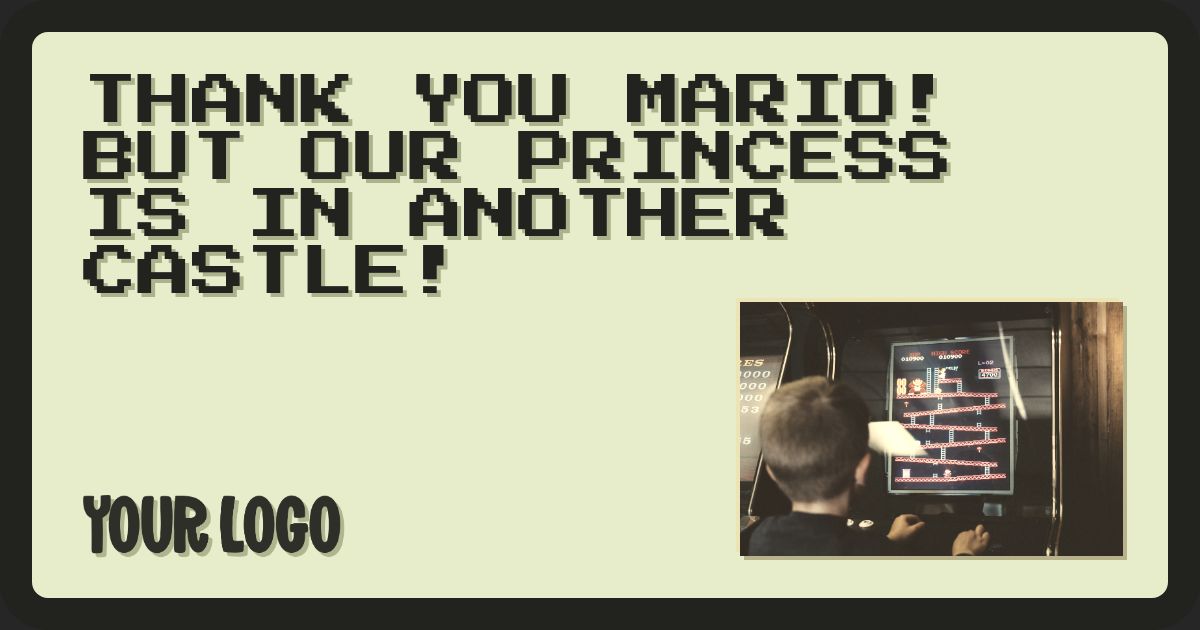
With a featured image
A retro pixel-style card with your photo and logo. For gaming and playful posts.
8bit-1Bar 1

With a featured image
Add a clear bar at the bottom of your featured photo for your logo.
bar-1Bar 2
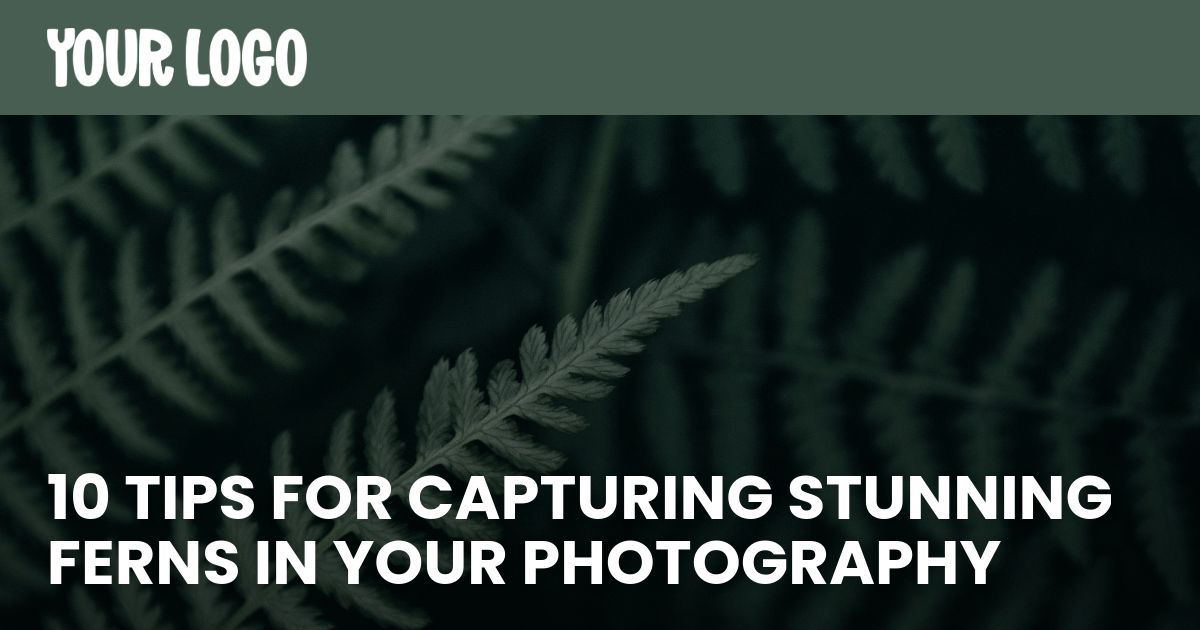
With a featured image
Keep your logo in a clear bar at the top of your featured photo.
bar-2Bar 3
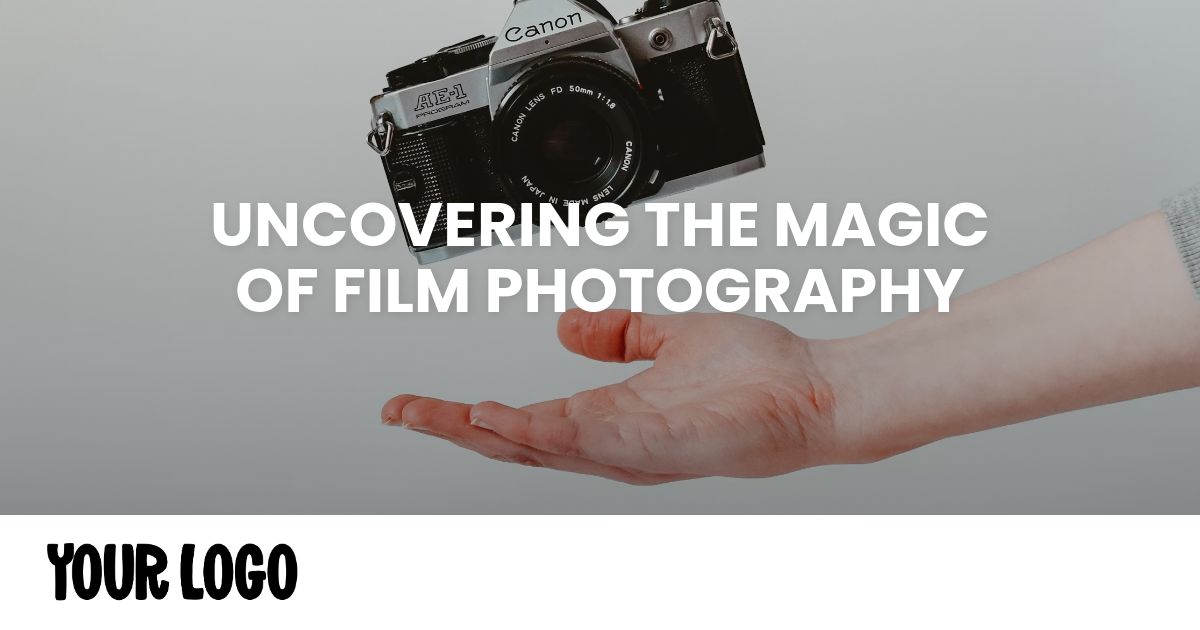
With a featured image
A featured photo with a distinct logo bar at the bottom.
bar-3News 1
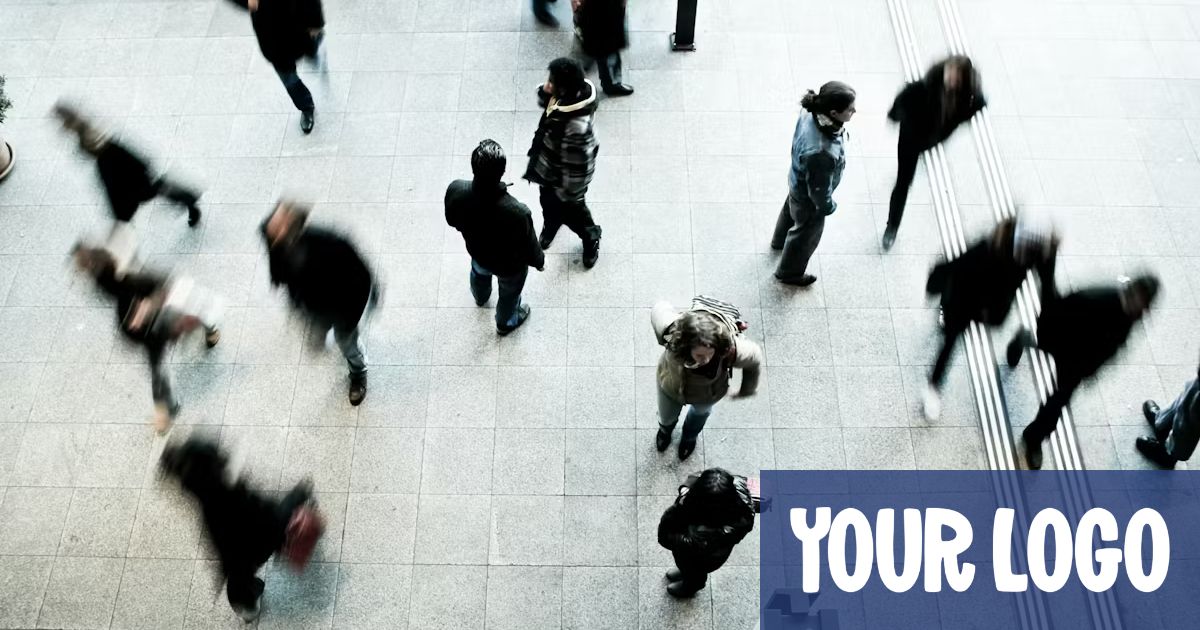
With a featured image
Keep the photo in focus with a subtle logo in the bottom-right corner.
news-1News 2
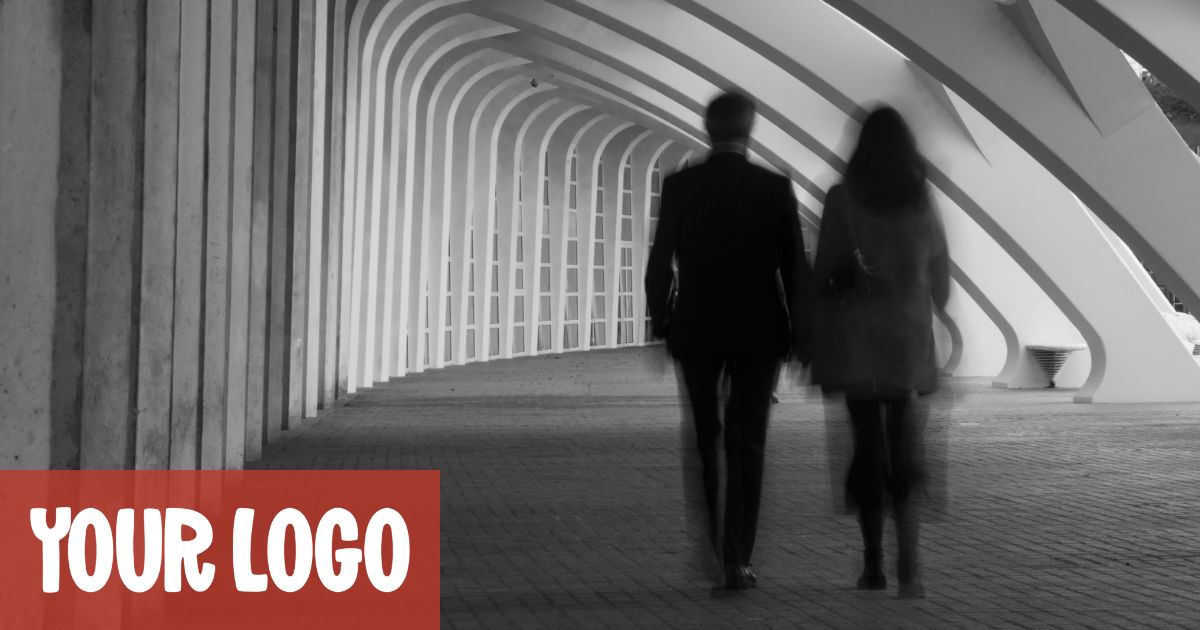
With a featured image
Keep the photo in focus with a subtle logo in the bottom-left corner.
news-2Mesh 1
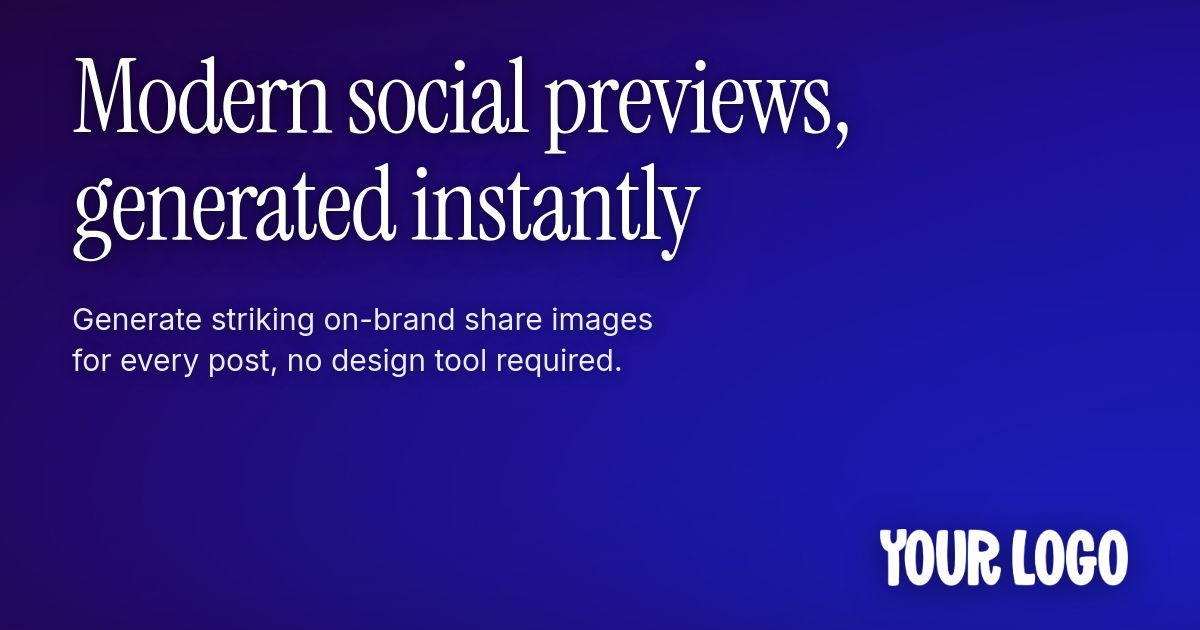
No photo needed
A colorful gradient from your brand color, with a large headline and optional description.
mesh-1Mesh 2
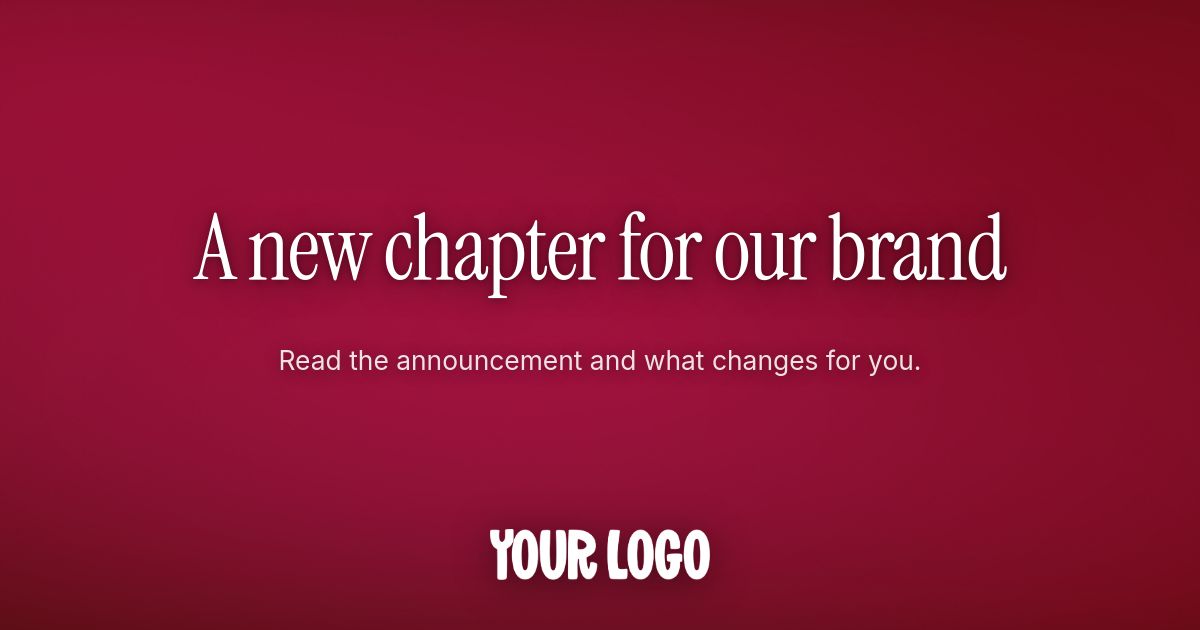
No photo needed
Center your headline, description, and logo on a colorful gradient background.
mesh-2Mesh 3
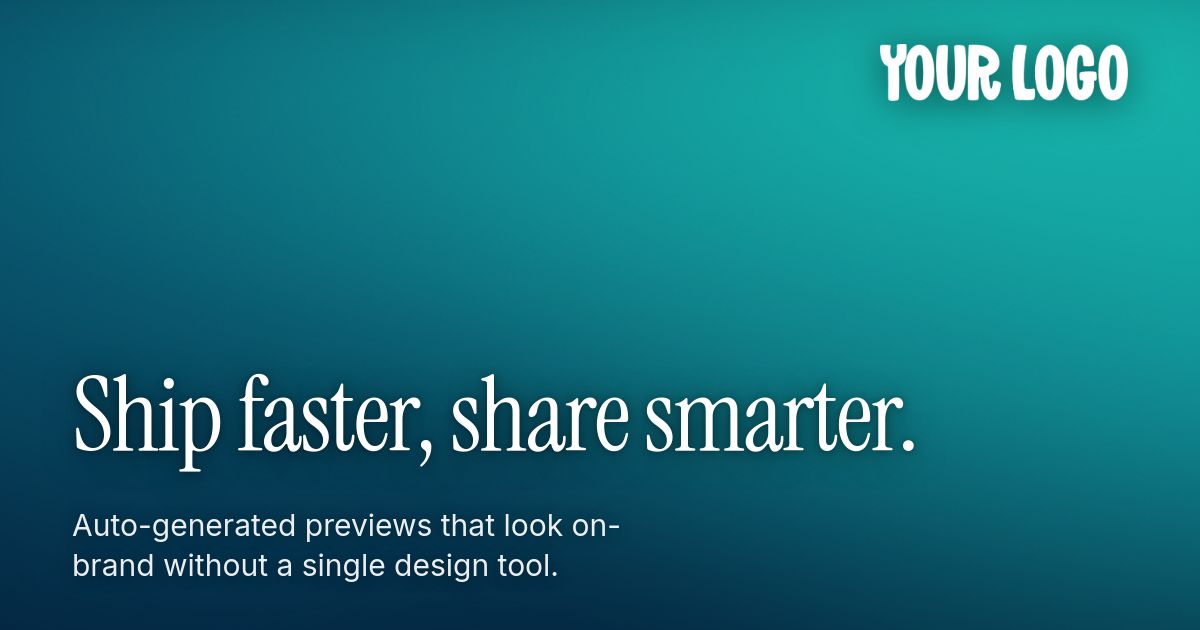
No photo needed
A magazine-style headline near the bottom of a colorful gradient, with your logo at the top.
mesh-3In addition to the templates above you can also select to screenshot your post’s webpage. This is perfect for pages or posts that contain a visual you want to show.
As seen above you can customize each template with a title, background image, author avatar and even your logo. Of course each option is optional if you just want to simple overlay your text onto a background you can do that as well.